So you want to switch to Linux OR dual boot with Windows OR are searching for a suitable distro. Too many distributions, too much confusion. What to do?
and take the test. Results are out in a giffy, and you will know which distro you belong to. My results were ‘Fedora’ and ‘Mandriva’ respectively. Nevertheless, I love Ubuntu ( Came 2nd in both tests )and it Rocks ! 🙂 Have Fun !
I got in trouble with Win XP when I used Wine ( on Ubuntu 8.04 ) to install a software on my mounted windows NTFS partition. An ambitious approach, but i took the risk to see what will happen. I don’t quite love my mistress (WinXP) you see 😉 It completed the installation and everything seemed fine.
As expected, there were issues:
1) Win XP will boot and then stall at the desktop wallpaper
2) No icons or taskbars are seen
3) Nothing works
4) Ctrl + Alt+ Del will work and the Task Manager will Appear
5) Same issues with Safe Mode.
6) Restoring registry didn’t work either.
( by commanding ‘ scanreg /restore ‘ at command prompt )
Since safe mode didn’t work either, I knew system files have gone bonkers. So what did I do? Of course I thought of formatting, and thats kinda usual for Windows users. Then i recalled a previous incident where my GRUB was totally distorted by a fresh installation of Windows ( A very jealous mistress indeed ). Of course i prepared myself with all those tools : Super Grub Bootable, UBCD 4 Win, Ubuntu Live CD etc. But it gets messy you know.
Then a thought flashed my mind. Why don’t I just try to repair Windows? Will it or will it not destroy my GRUB? So I just had to try it…
This is what happened
1) WinXP SP2 bootable disk initializes as the PC boots
*2) Then a screen appears, where we have to choose whether we should Repair ( press ‘R’ ) or install WinXP ( press <Enter> )
Note: Now this is the interesting part –> PRESS ENTER. DO NOT press ‘R’.
*3) It will take you to the next screen where it will search for previous installations of Win XP.Your current installation will be highlighted, and the installer will ask you what to do?
It is here where you should choose to REPAIR.
* = Pay special attention to this lines
From now on…it will do the ‘ repairing ‘ work 🙂 Just wait and be patient.
After its done, you will be extremely happy to see your GRUB load as normal as it reboots.
Before formatting Windows, I guess this method is a golden tip to save lotsa time if its not a virus issue etc. Whenever there is a problem with Windows, before you give up, almost always try to REPAIR. It may just be the solution for you…
When finished, you’ll have a new option under System – Preferences called Advanced Desktop Effects. Here you can tweak the animations for individual window effects as well as enable new features. Below are some of the animations and effects that I have enabled for my Linux box.
Wobbly Windows ( Just drag any window )
The Ring Changer ( *Super + Tab )
*Super = Windows Key
3D Cube Switch ( Control + Alt + Click and hold left mouse + drag to the left/right )
3D Cube Switch ( Control + Alt + Click and hold left mouse + drag to the left/right )
Alt + Tab
Desktop Zooming ( Super + Mouse scroll button up/down )
Cube Unfolded ( Control + Alt + Down Arrow Key )
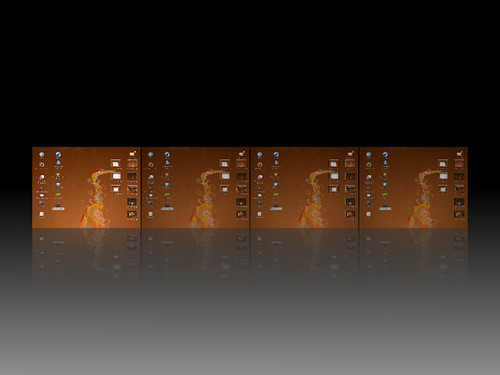
View Desktops ( Super + E )
Paint Fire ( Super + Shift + Press left mouse button and move around )
To clear ( Super + Shift + C )
This is not a screen saver. The Ubuntu Dekstop is still running and I can still use it…
Cool… ( As Above )
Fade any windows – not an issue ( Alt + Mouse scroll button up/down )
After enabling other effects ( based on your choice and taste ) in the Advance Desktop Effect Settings, this are the keyboard shortcuts that maybe of use:
Desktop Effects1 Keyboard Shortcuts
Rotate Cube Mousewheel on Desktop
Switcher2 Alt + Tab
Shift Switcher3 Super + Tab (2 modes: flip and cover)
Ring Switcher Super + Tab – overrides Shift Switcher
Expo Super + E (toggle)
Film Effect Ctrl + Alt + Down Arrow4
SUPER+SHIFT+DRAG LEFT MOUSE = draw fire
SUPER+SHIFT+C = clear fire
CTRL+ALT+DRAG LEFT MOUSE = rotate cube
CTRL+ALT+LEFT ARROW = rotate cube
CTRL+ALT+DOWN ARROW = flat desktop
SHIFT+ALT+UP=initiate window picker
CTRL+ALT+DOWN=unfold cube
ALT+TAB=window switch
SUPER+TAB=flip switcher or ring switcher depending on which is enabled.
ALT+F7=initiate ‘move windows’
SHIFT+F9=water effect
SHIFT+F10=slow animations
CTRL+ALT+D=show desktop
For Grouping and Tabbing:
SUPER+S=Select Single Window
SUPER+T=Tab Group
SUPER+Left=Change Left Tab
SUPER+Right=Change Right Tab
SUPER+G=Group Windows
SUPER+U=Ungroup Windows
SUPER+R=Remove Group Window
SUPER+C=Close Group
SUPER+X=Ignore Group
hold the super button then select the windows you want to group and then hit super+g
Rotate Cube Manually: Ctrl + Alt + Left Mouse Button
Scale Windows: Alt + Shift + Up Arrow
Show/Clear Desktop: Ctrl + Alt + D (toggle)
Snapping Windows : Move a window across workspaces5
Screenshot: Super + Left Mouse Button
Zoom In/Out: Super + Mousewheel
Transparent Window : Alt + Mousewheel
Resize Window : Alt + F8
Move Window : Alt + F7
Add Helper : Super + P
Widget Layer: F9 (toggle)
Water Effects: Shift + F9 (toggle)
Fire Effects: On Super + Shift + Left Mouse Button
Fire Effects: Clear Super + Shift + C
Annotate: Draw Super + Left Mouse Button
Annotate: Start Super + 1
Annotate: End Super + 3
Group: Select Window(s) Super + S
Group: Group Windows Super + T
Group: Ungroup Windows Super + U
Group: Flip Windows Super + Right or Left Arrow
Two Words : UBUNTU ROCKS ! [ AWN and COMPIZ FUSION Rolls 🙂 ]




 TRUTH ROCKS !